Quick Prerequisites
- A Bluejay account
- A Slack workspace where you can install the Bluejay app (admin or permission to add apps)
Setting Up the Integration
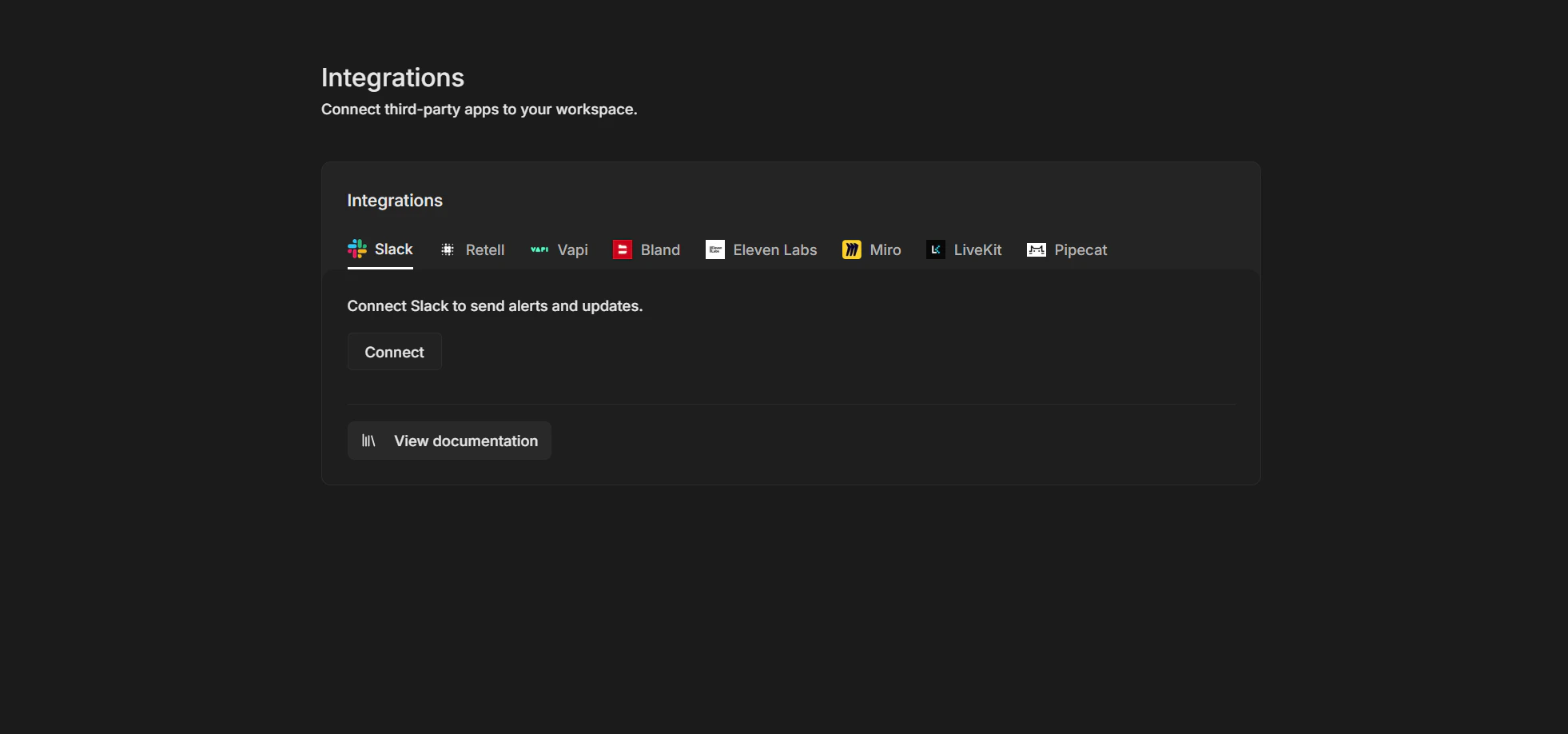
1. Go to Integrations
- Log into your Bluejay Dashboard
- Click your Organization in the bottom left corner
- Select Integrations
- Open the Slack tab
- Click Connect to start the Slack authorization
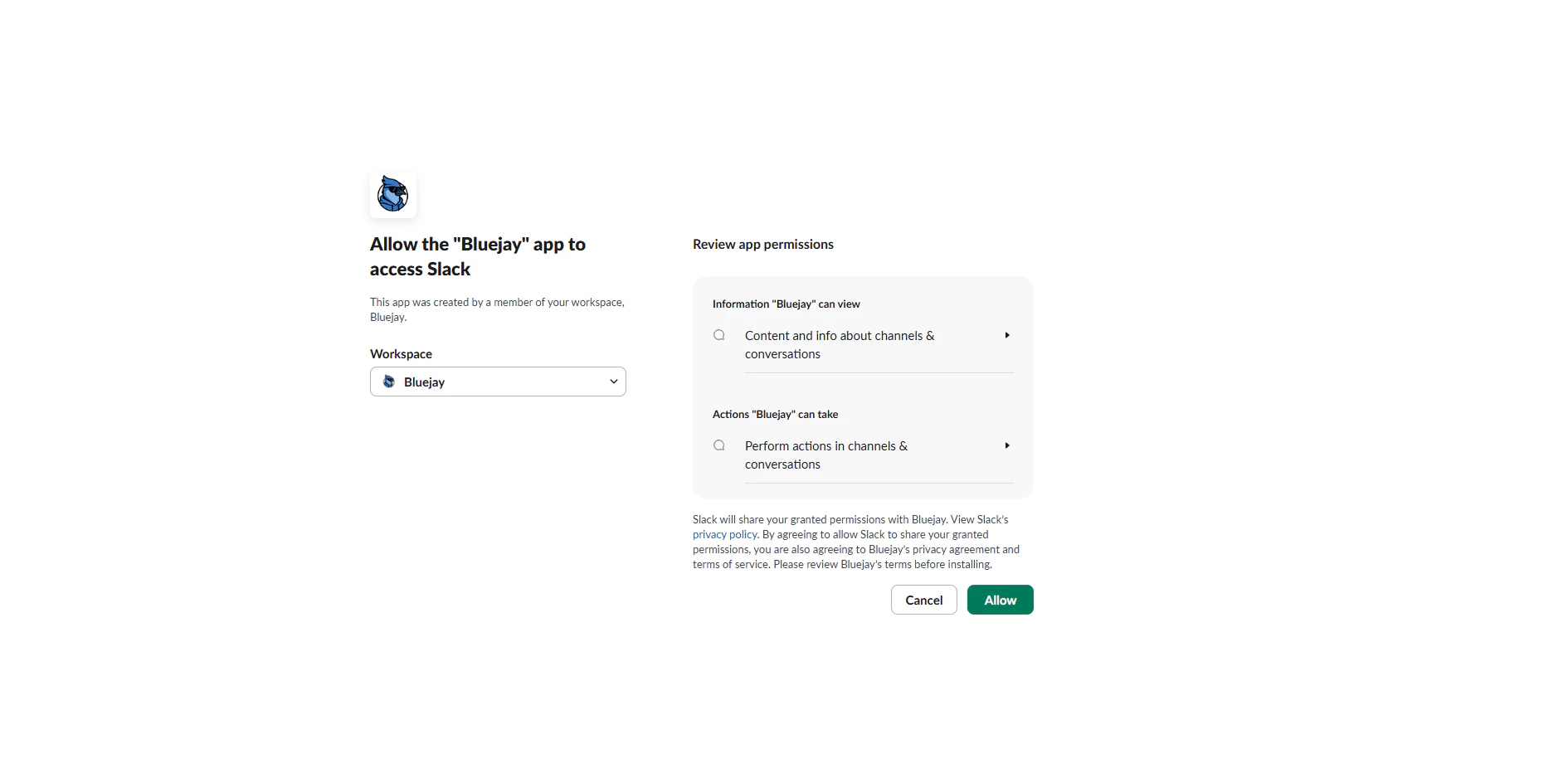
2. Approve Bluejay in Slack
- After clicking Connect, you are redirected to Slack
- Review the requested permissions (channels and sending messages)
- Click Allow (or “Approve for Bluejay”) to authorize Bluejay for your workspace
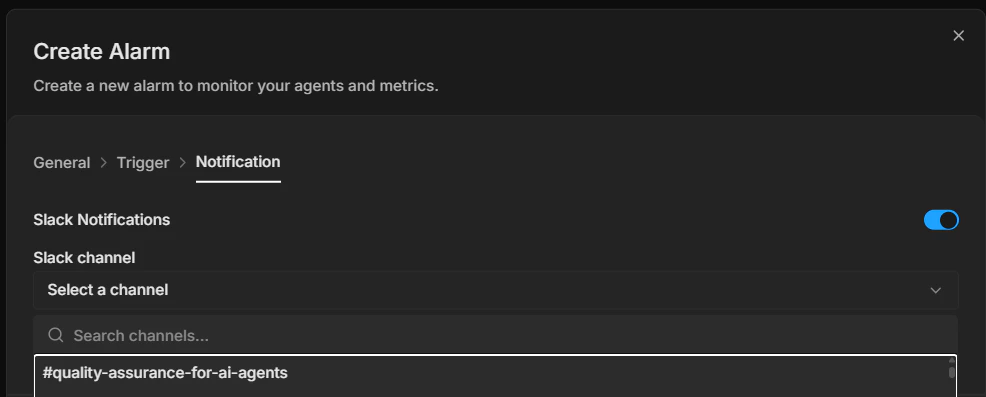
3. Attach Slack to an alarm
- Go to Monitor → Alarms
- Create a new alarm or edit an existing one
- In the notification section, turn on Slack Notifications
- Choose a Slack channel from the dropdown (only populated when Slack is connected)
- Save the alarm. When the alarm triggers or recovers, a message is sent to that channel