



Quick Prerequisites
- Vapi API Key
- A Bluejay Account
Setting Up the Integration
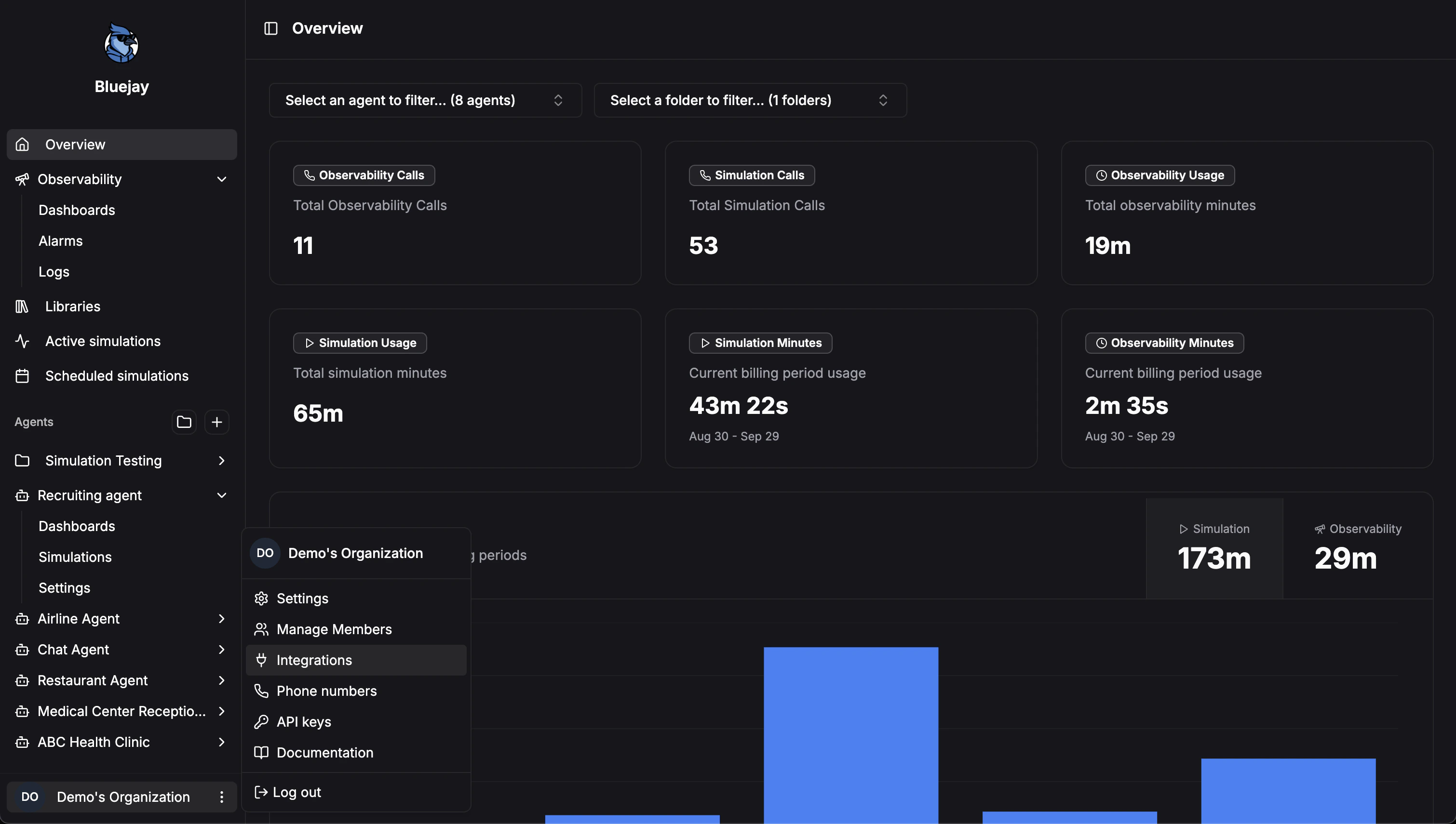
1. Configure Organization Settings
- Log into your Bluejay Dashboard
- Click on your Organization button in the bottom left corner
- Select the Integrations option
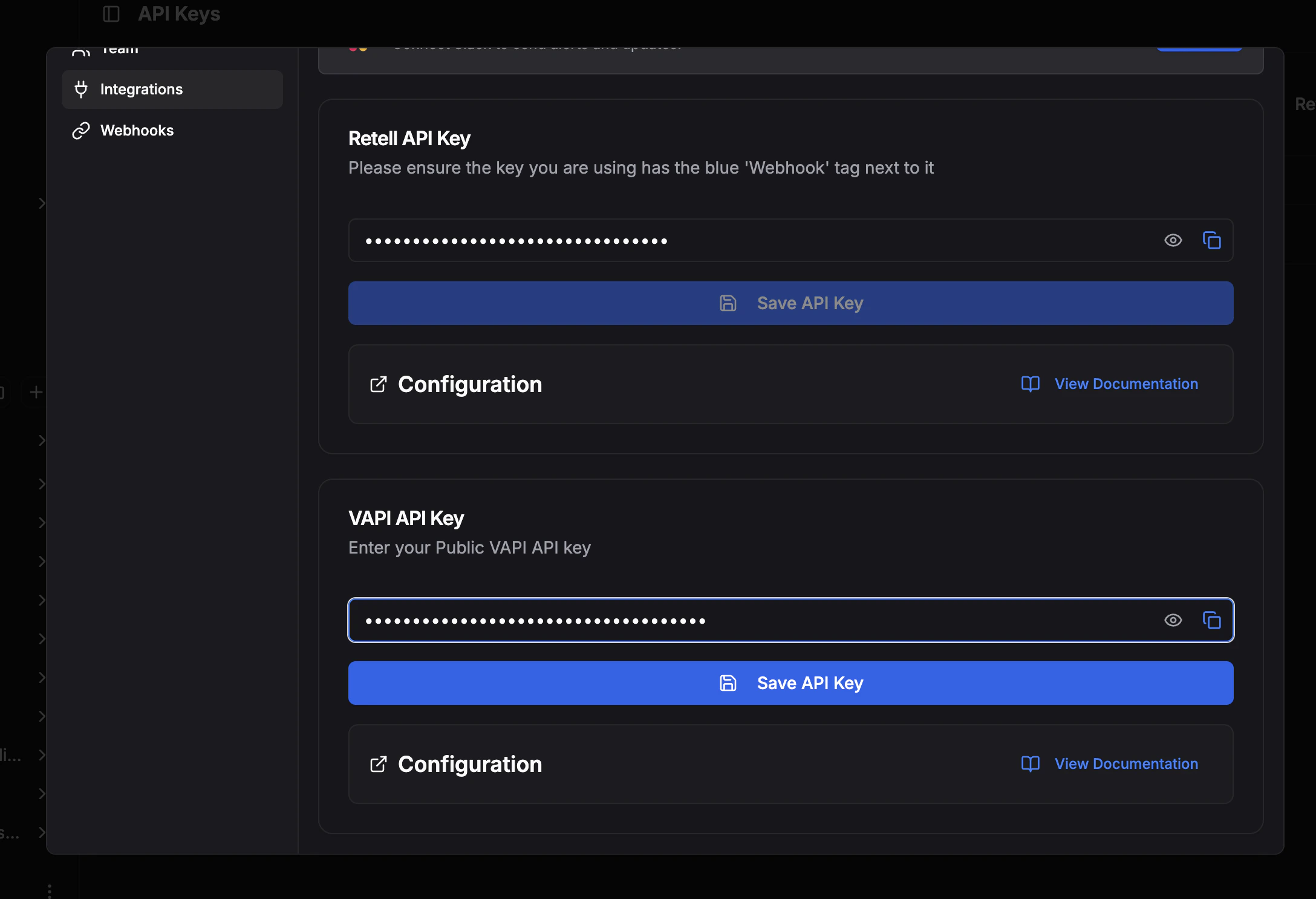
2. Adding Your Vapi Key
- Locate the Vapi API Key input
- Enter your Vapi API Key into the field
- Click Save API Key
3. Configuring Your Agent in Vapi
- Copy the Webhook URL given in the Webhook configuration dropdown
- Navigate to your Vapi Agents dashboard and scroll down to the Messaging dropdown
- Paste the Webhook URL into the Server URL field
- Click Add Header and enter secret as the header name and your Vapi public API key as the Value
4. Configuring Your Agent in Bluejay
- Navigate to your desired Agents Settings tab
- Scroll down and click the Advanced Settings dropdown
- Select Vapi as your Voice AI Provider
- Copy and paste your Vapi Agents ID into the Assistant ID field
- Click Save Changes