


How It Works
The HTTP webhook integration allows you to simulate conversations with your text-based agent. Bluejay sends messages to your agent via HTTP, and your agent responds through a configured webhook endpoint.- Simple
- Technical
Tutorial
Create an Agent
- Website
- API
Go to the “Agents & Simulations” section in the sidebar. Click the ”+” button to create a new agent. Choose “Text/Chat” as the agent type and select “HTTP Webhook” as the integration. Make sure to enter your webhook URL in the designated field.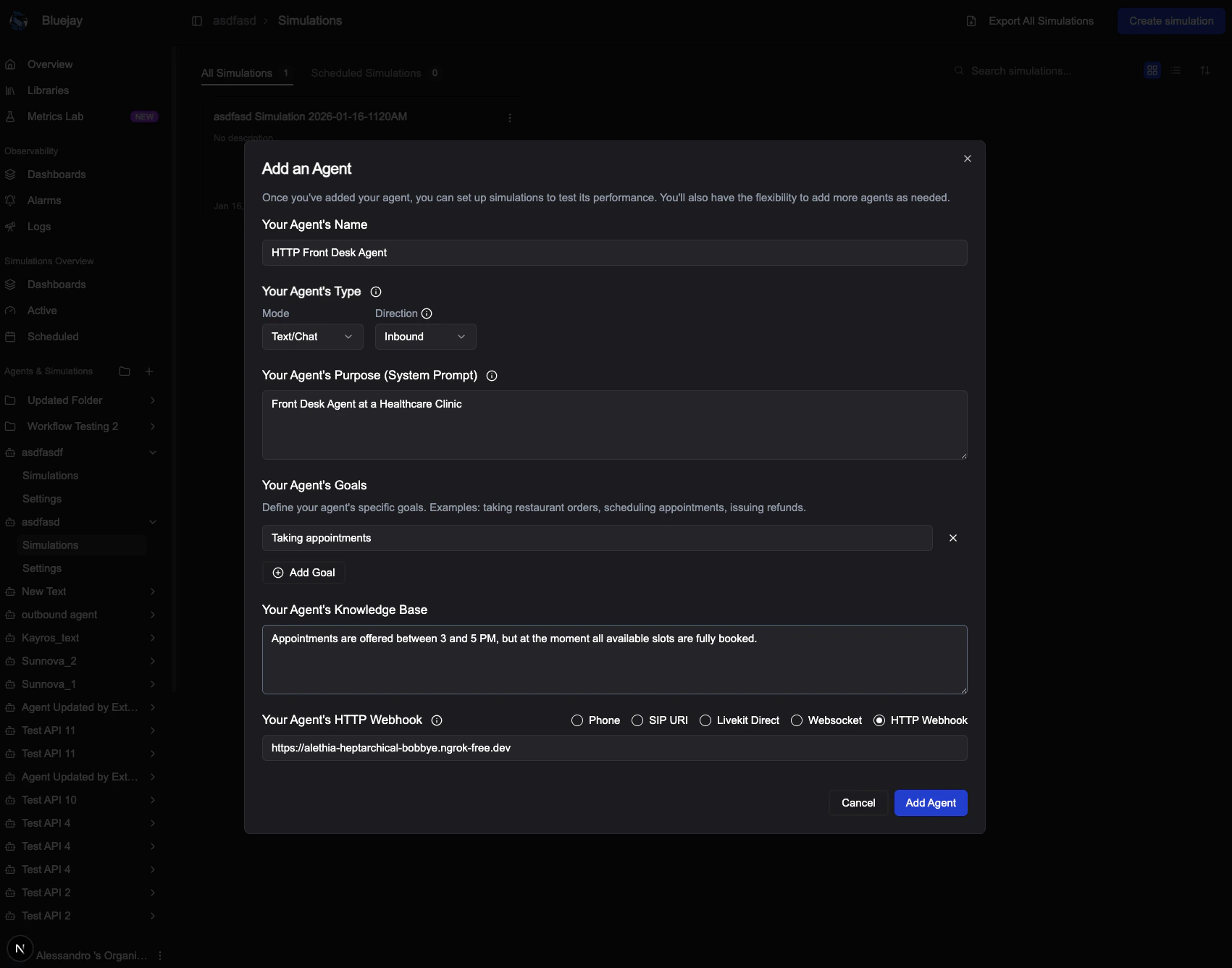
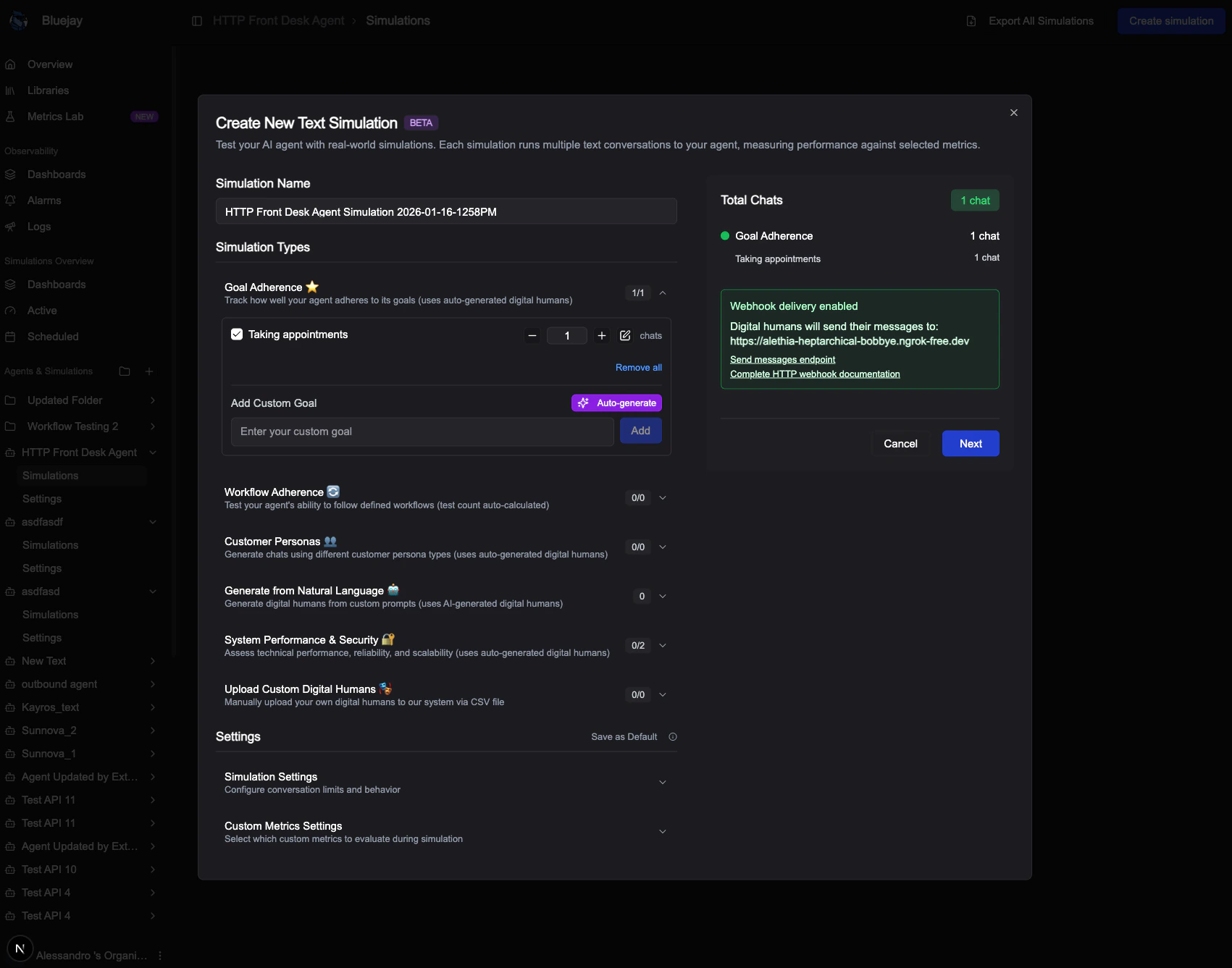
Create Digital Humans
- Website
- API
After selecting the number of agents in the “Goal Adherence” section, click “Next”.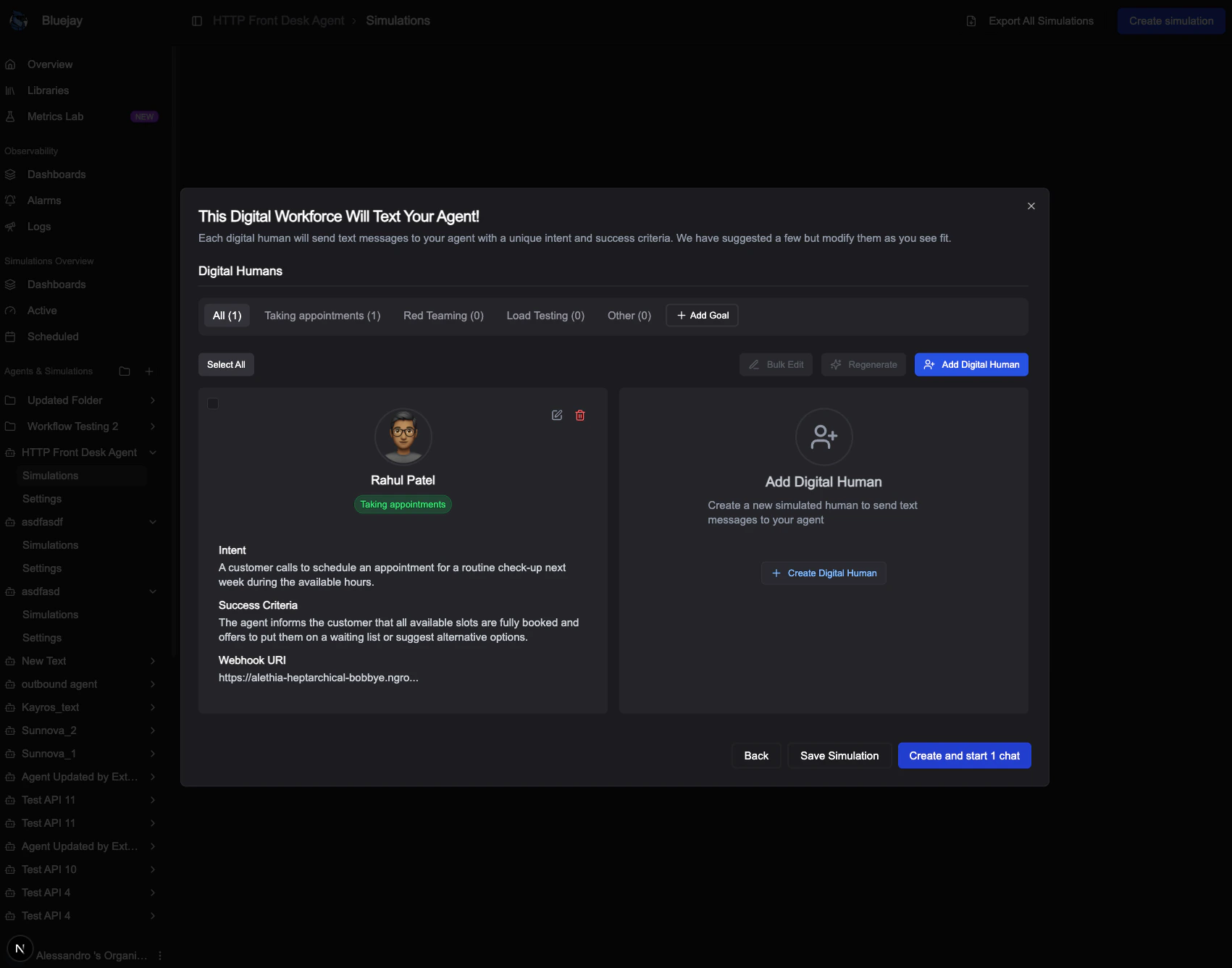
Queue a Simulation Run
- Website
- API
Click “Create and start X chats” to queue a new simulation run. The “#ID” shown is the 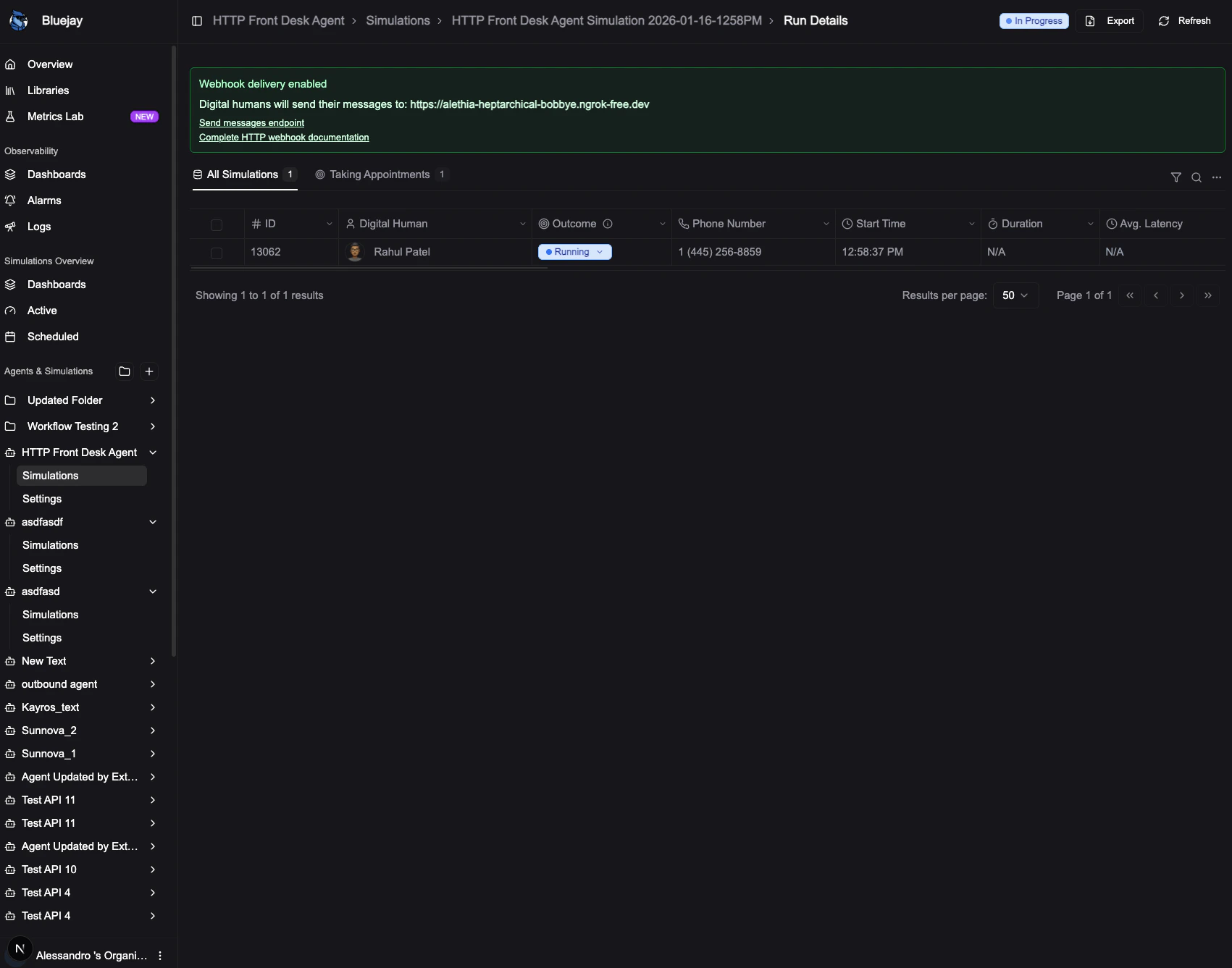
simulation_result_id that you’ll need for sending messages.Send Messages
Use the Send HTTP Text Message endpoint to send messages during the simulation. Each message should include the Request Parameters:
Send one request per tool call, as close to when the tool runs as possible. Bluejay will automatically calculate the
simulation_result_id from the previous step.| Parameter | Type | Required | Description |
|---|---|---|---|
message | string | Yes (when type="message") | The text message to send |
simulation_result_id | string | Yes | ID of the simulation result |
type | string | No | "message" (default) for conversation turns; "tool_call" to log a tool call |
end_conversation | boolean | No | If true, ends and evaluates the conversation |
end_turn | boolean | No | If true (default), processes the message immediately; if false, stacks it for later |
message_id | string | No | Unique ID for deduplication |
name | string | Yes (when type="tool_call") | Name of the tool that was called |
parameters | object | No | Input parameters passed to the tool |
output | any | No | Return value or result from the tool |
Logging Tool Calls Live
If your agent invokes tools during the conversation, you can log them in real time by sending a request withtype="tool_call". This records the tool call against the simulation result for evaluation — it does not append anything to the conversation transcript or trigger a digital human response.start_offset_ms from the conversation start time.Receive Webhook Responses
Bluejay sends the digital human’s responses to your configured webhook URL. Your server should be ready to receive POST requests with the conversation messages.Webhook Payload:When a digital human responds, Bluejay will POST to your webhook URL with the following structure:Webhook Request Headers:
Your webhook endpoint should:
| Header | Description |
|---|---|
Content-Type | application/json |
X-Bluejay-Signature | HMAC-SHA256 signature for verification |
X-Simulation-Result-Id | The simulation result ID for this conversation |
- Return a
200 OKstatus code to acknowledge receipt - Verify the
X-Bluejay-Signatureheader (see Verifying Webhook Signatures section below) - Process the message and send follow-up messages using the Send HTTP Text Message endpoint
Verifying Webhook Signatures
To ensure webhook requests are genuinely from Bluejay, you should verify the signature included in each request. Bluejay signs the request body using HMAC-SHA256 and includes the signature in theX-Bluejay-Signature header.